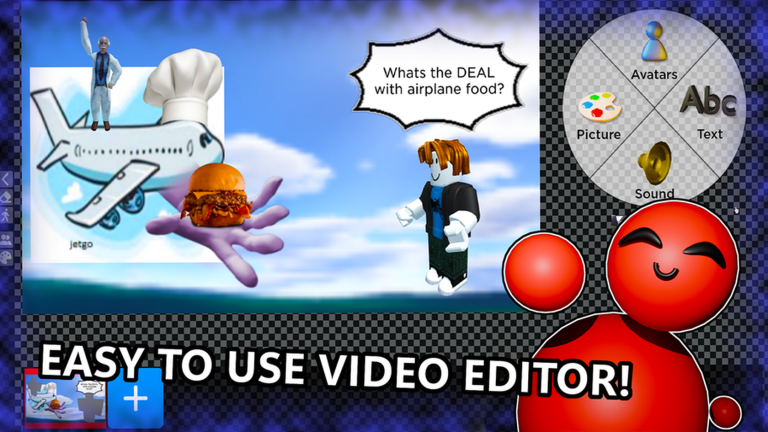
Your first movie, step by step
Press Create to open the editor. Add a background, a character and one line of text to your first slide. Make three to five slides, animate one thing per slide, add music from the Sound panel, then name it and press Publish.
From opening Roblox to watching your movie on the big screen. Every step says where to look and what to click. A first movie takes 15 minutes — it does not need to be good, just finished. Watching one movie in the lobby first shows you what the editor can do.
Step 1: Open the game and look around
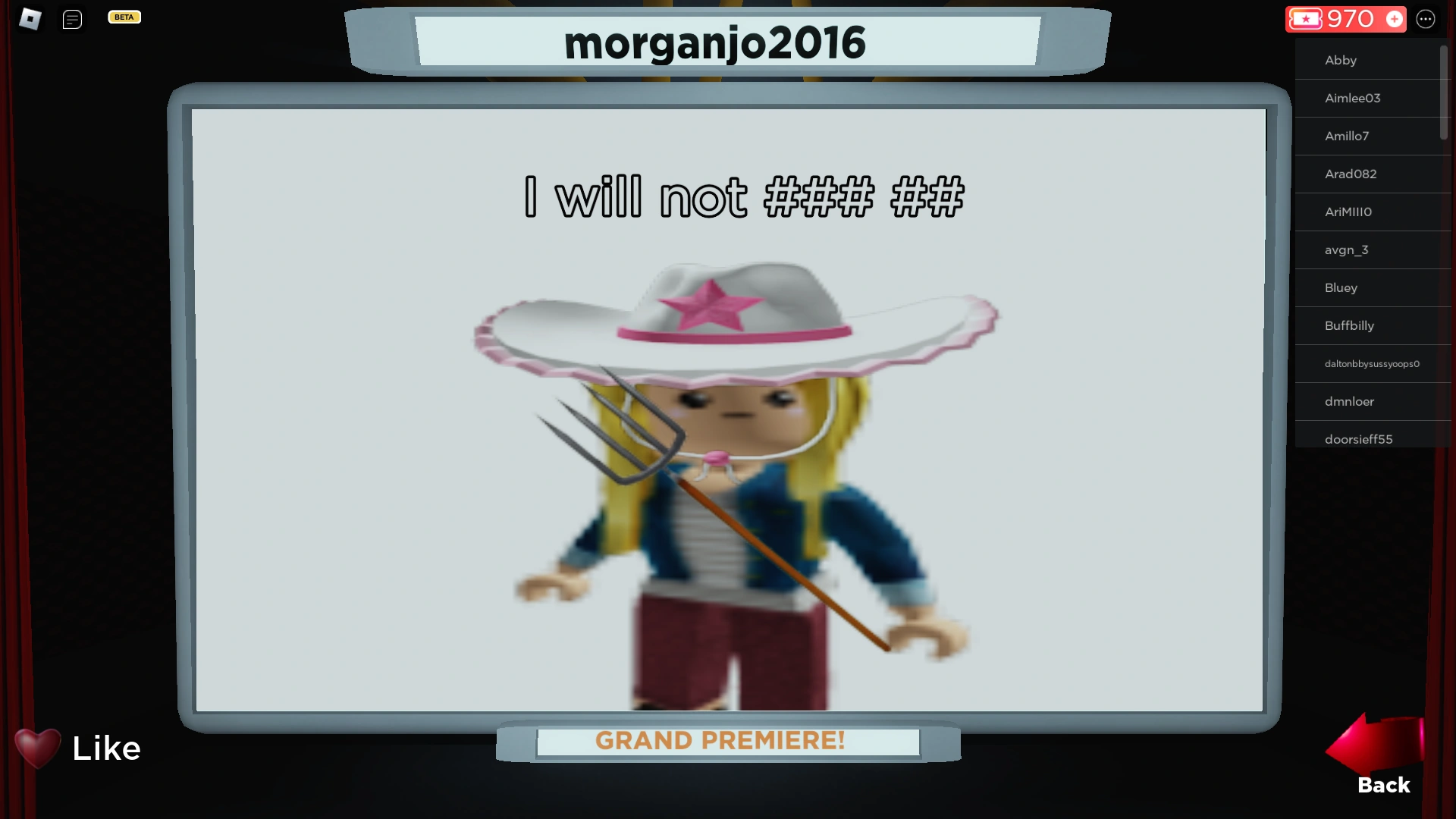
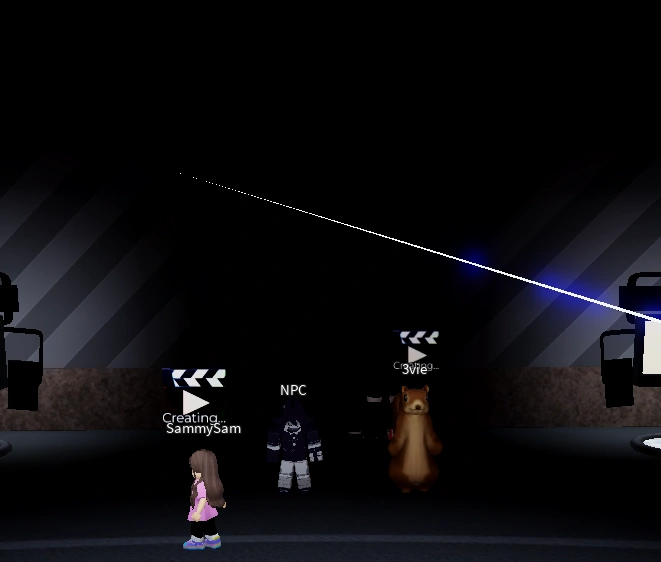
Search My Movie on Roblox and press Play. You land in a cinema. Three things matter:
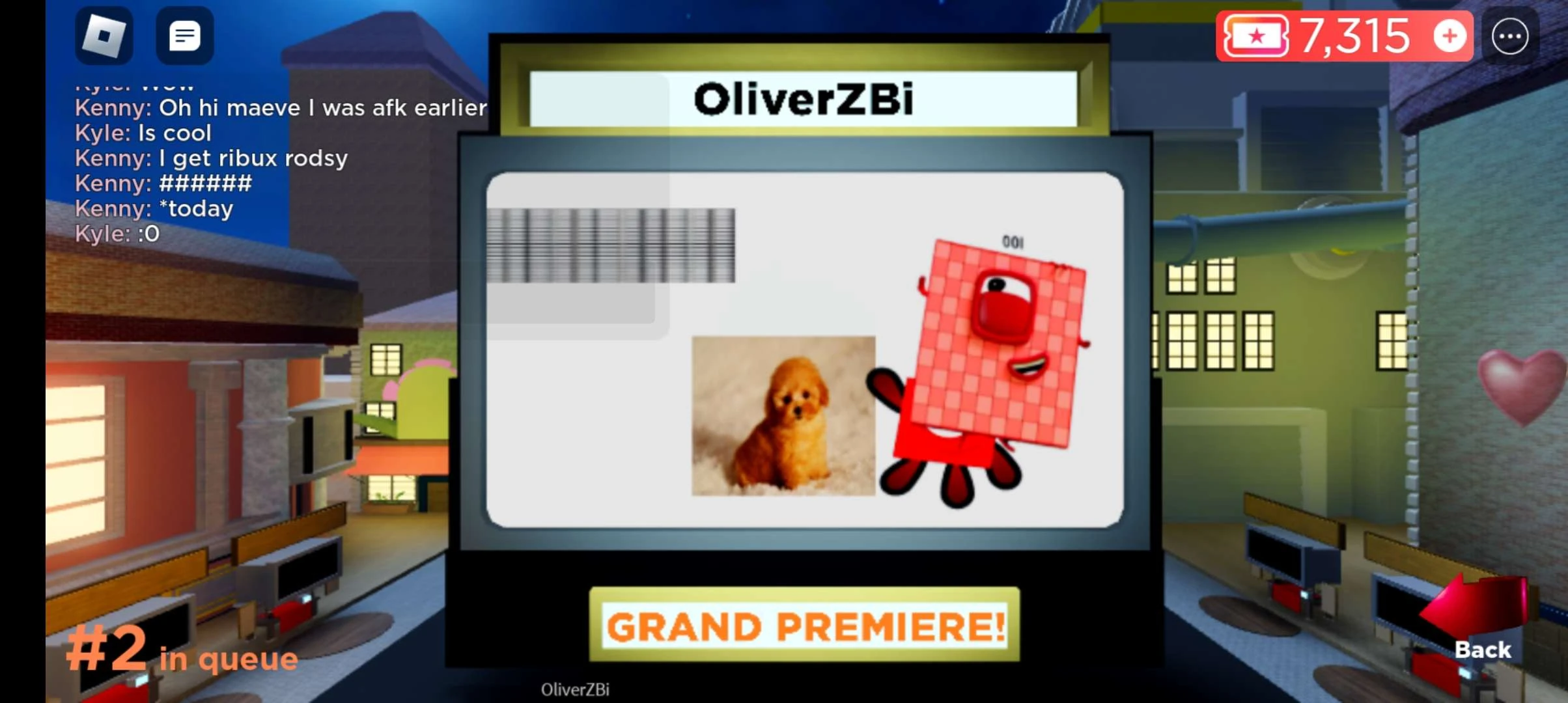
- The big screen — where movies play, including yours later.
- The Create button — the door to the editor.
- Tickets — click the ones that drop around the lobby (5–35 each).

Step 2: Open the editor
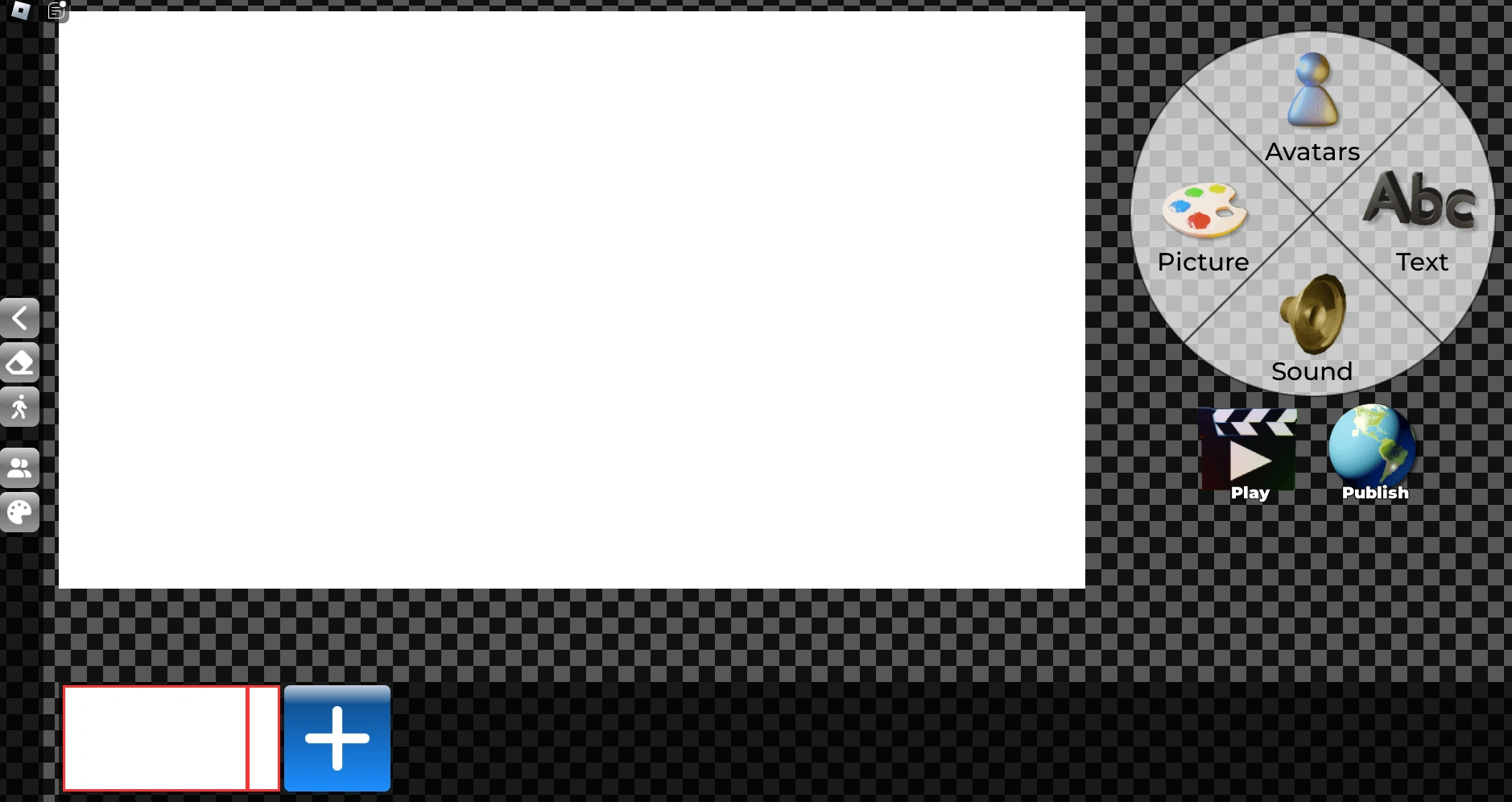
Press Create. The editor opens on your draft. Find its three main parts:
- The video screen — the big middle panel. Shows the slide you have selected.
- The timeline — the bottom strip, all your slides in order. Click one to work on it.
- The panels — the tool boxes around the sides. They add things to the selected slide.
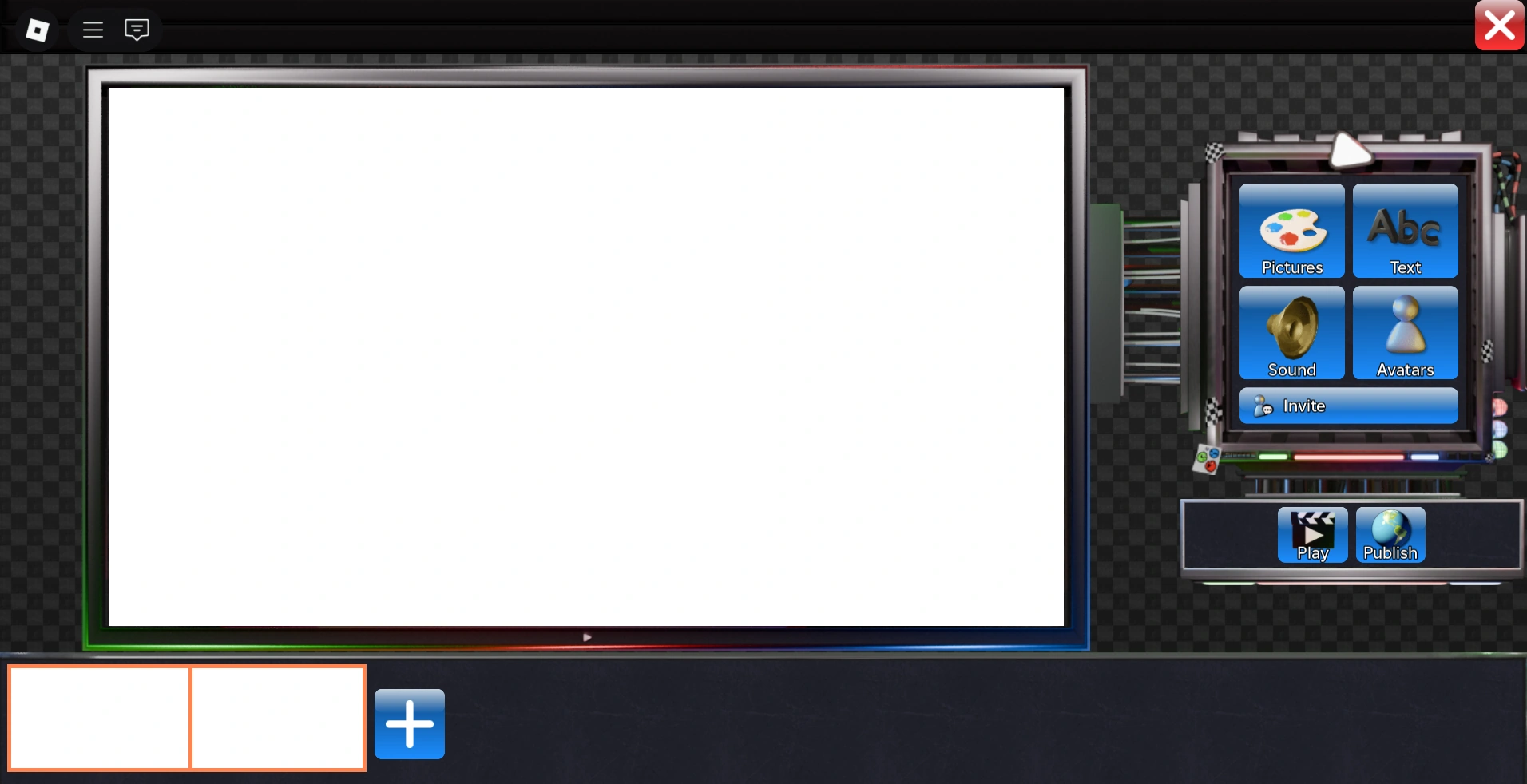
Step 3: Build your first slide
A slide (the game also says clip) is one moment of your movie. Build slide one in order:
- Background — pick a scene in the Backgrounds panel.
- A character or picture — Avatars for game characters, Pictures for images.
- One short line of text — open Text.
- Preview — play the slide and check nothing is covered. No animation yet.
Step 4: Add two or three more slides
- The + button adds a New slide; Copy slide clones the current one — the fast way to keep a scene going. Swap the background, change one thing.
- Three to five slides is a great first movie. Short movies get watched to the end.
Step 5: Make one thing move
Open Animate and pick one element. There are 15 styles — start with Bounce. One animation per slide: one moving thing reads as motion, five as noise.
Step 6: Add music
Select a slide, open Sound, press Music. Pick from the game's albums (about 96 free tracks) or search Find Popular Music. Every clip holds one track — check the volume as you go. More in the music guide.
Step 7: Name it, give it a cover
- Name: make it a question or a promise — "My First Movie" is invisible.
- Cover: your best-looking slide, not slide one. The cover is your only advertisement.
Step 8: Publish, then watch it
Press Publish — no spam, nothing that dodges the chat filter. Then watch your movie on the big screen with everyone else. The cinema looks different from the editor — that gap is your next lesson.
If something goes wrong
| Problem | What to do |
|---|---|
| Music plays silence | Try another track — songs get removed from Roblox. If only that one is silent, the track is the problem |
| Music starts one slide late | Music attaches to one specific slide — check the timeline selection |
| Publish seems stuck | Do not spam the button. Wait, then try once — the game limits constant uploading |
| Cannot find (or delete) your movie | Movies → My Videos lists everything you made — manage your own movies there |
| A slide looks empty | Check the right slide is selected in the timeline before adding |
After your first movie
- Music IDs & audio — if sound is your thing.
- The editor, tool by tool — every button explained.
- 10 tips for better movies — for film two.